
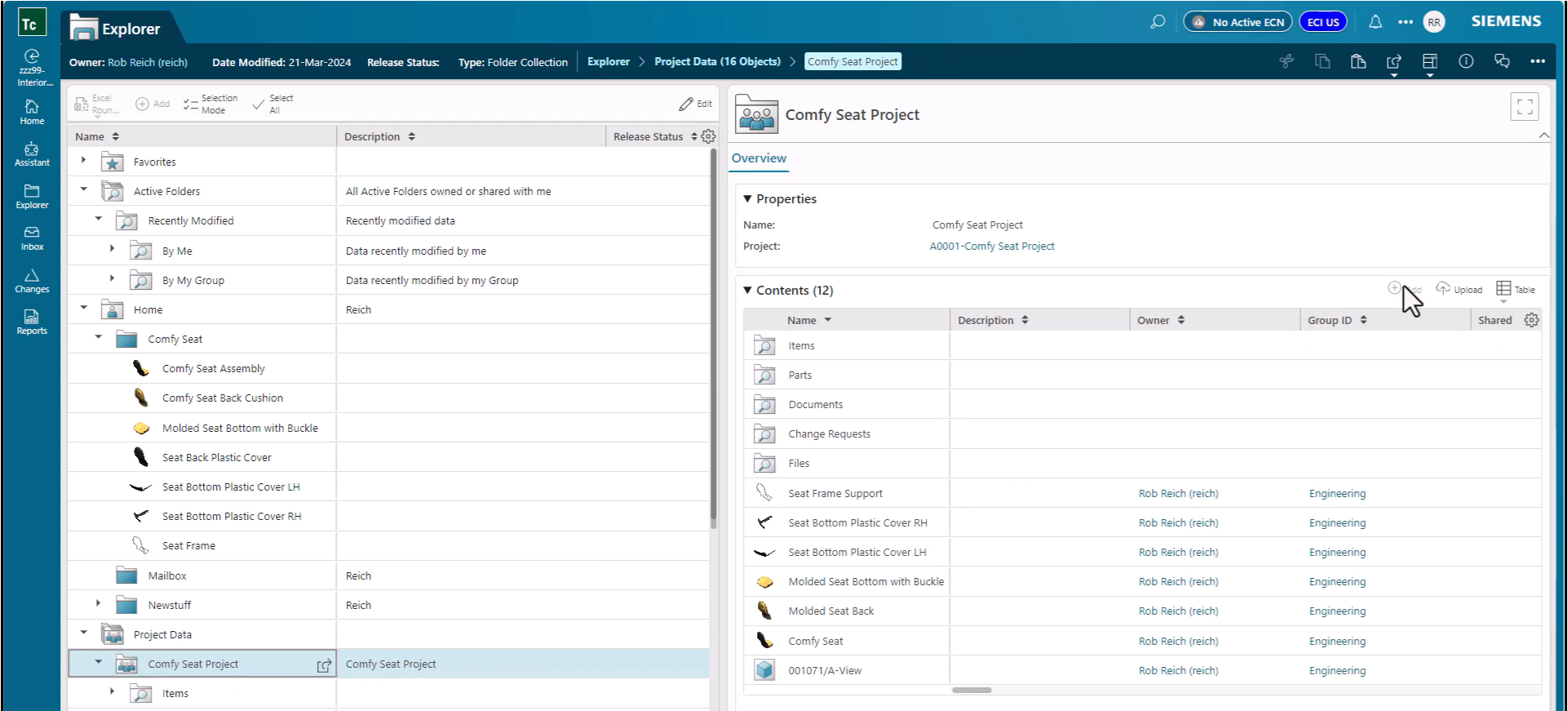
Active workspace, as well as Teamcenter’s Rich Client use the concept of folders to organize user data. These folders are not equivalent to a folder in Windows but are more of an organizational tool that allows individuals to organize their own work however they see fit. Teamcenter objects in a user’s folder structure might be displayed in an entirely different folder for another user, or not show up in a folder at all even though it could still be found when searched for in the Teamcenter database.
With the above understood, some groups still like to share their organizational structure with others in their company. Let us look at how that can be done.

1) Navigate to a folder you want to “Share” using either folders or Explorer depending on your version of Teamcenter Active Workspace.

2) Making sure you do not have any objects in the folder selected, go to the “Share” command group on the right-hand toolbar and select “Copy”.

3) Now you can paste this link into email, chat, discussions, or any other documentation you would like to make this location available from.
This will allow you to fluidly share relevant data to others in your organization without the complexity of managing formal projects with their more elaborate management requirements.


Leave a Reply